How do I set up Direct Debit with GoCardless in Financial IQ?
Connect your GoCardless account, send each customer a link to set up a Direct Debit and then press Collect by Direct Debit on an unpaid invoice. Bacs takes up to 5 working days to reach your bank, or 6 for a first payment.
For businesses on Financial IQ · 8 steps · Example figures · Last checked 6 November 2026
Connect your GoCardless account
Go to Settings, then Invoicing and payments, then GoCardless. If you already use GoCardless, press Connect GoCardless and log in. If you are new to it, press Create a GoCardless account and Financial IQ fills in your name, email and company for you.

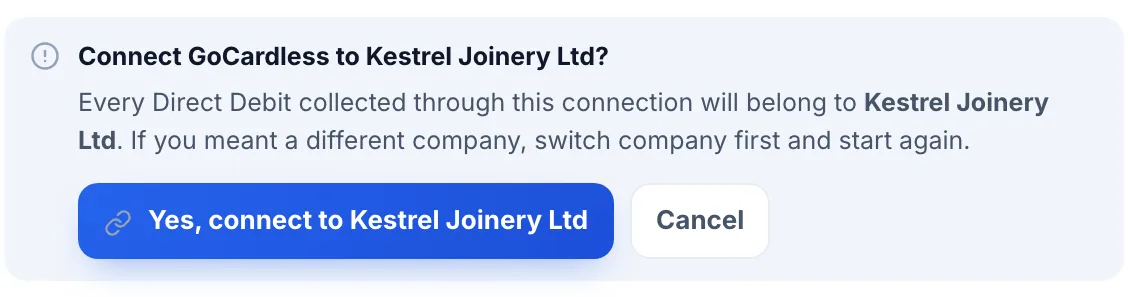
Financial IQ asks you to confirm the company first, because every Direct Debit collected through the connection belongs to that company. Switch company before you start if this is the wrong one.
You log in on GoCardless's own site and your password stays with them. When you come back the page shows Connected.
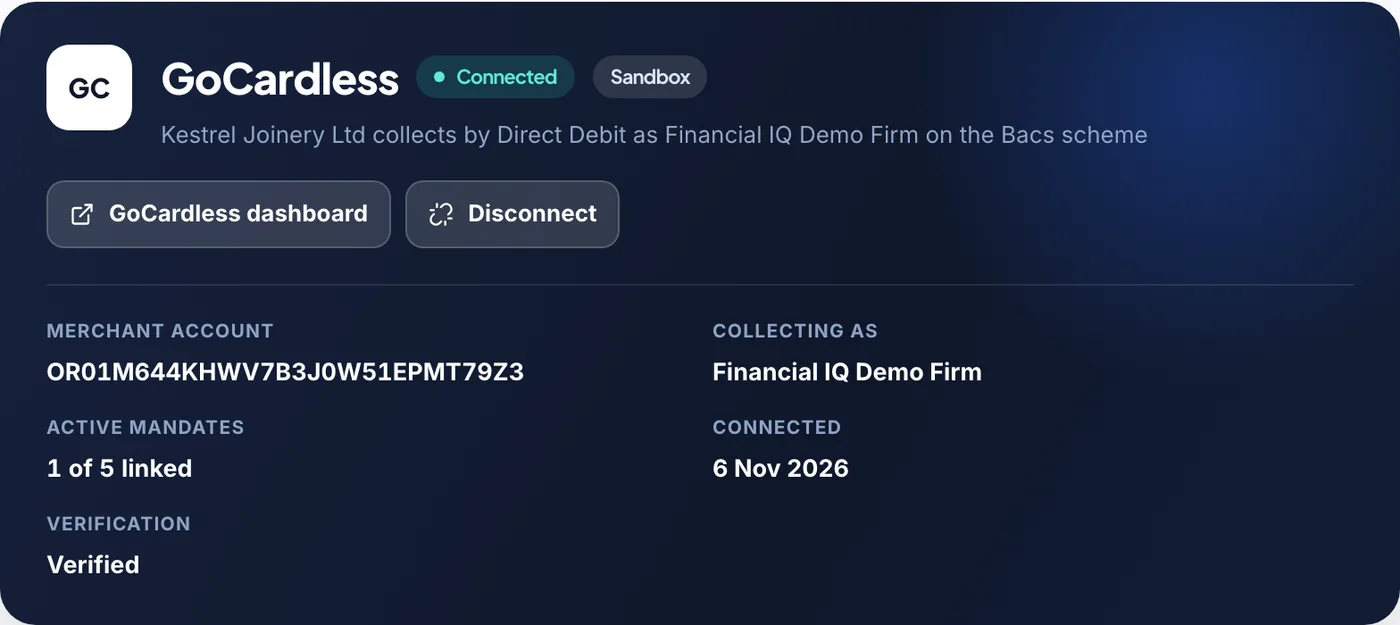
If GoCardless still needs to verify your business, the page tells you and links to their form. Until they have finished, GoCardless will not collect payments or pay anything out.
Already collecting through GoCardless? Press Link existing customers and mandates on the same page. Your customers don't have to sign anything again.
Check your collection rules
Scroll down to Collection rules on the same page. The switch that matters most is Let GoCardless retry failed payments, which turns on GoCardless's Success+ service. It only retries payments that failed for lack of funds, on a date GoCardless picks itself. Their pricing page lists Success+ on the Advanced and Pro plans.
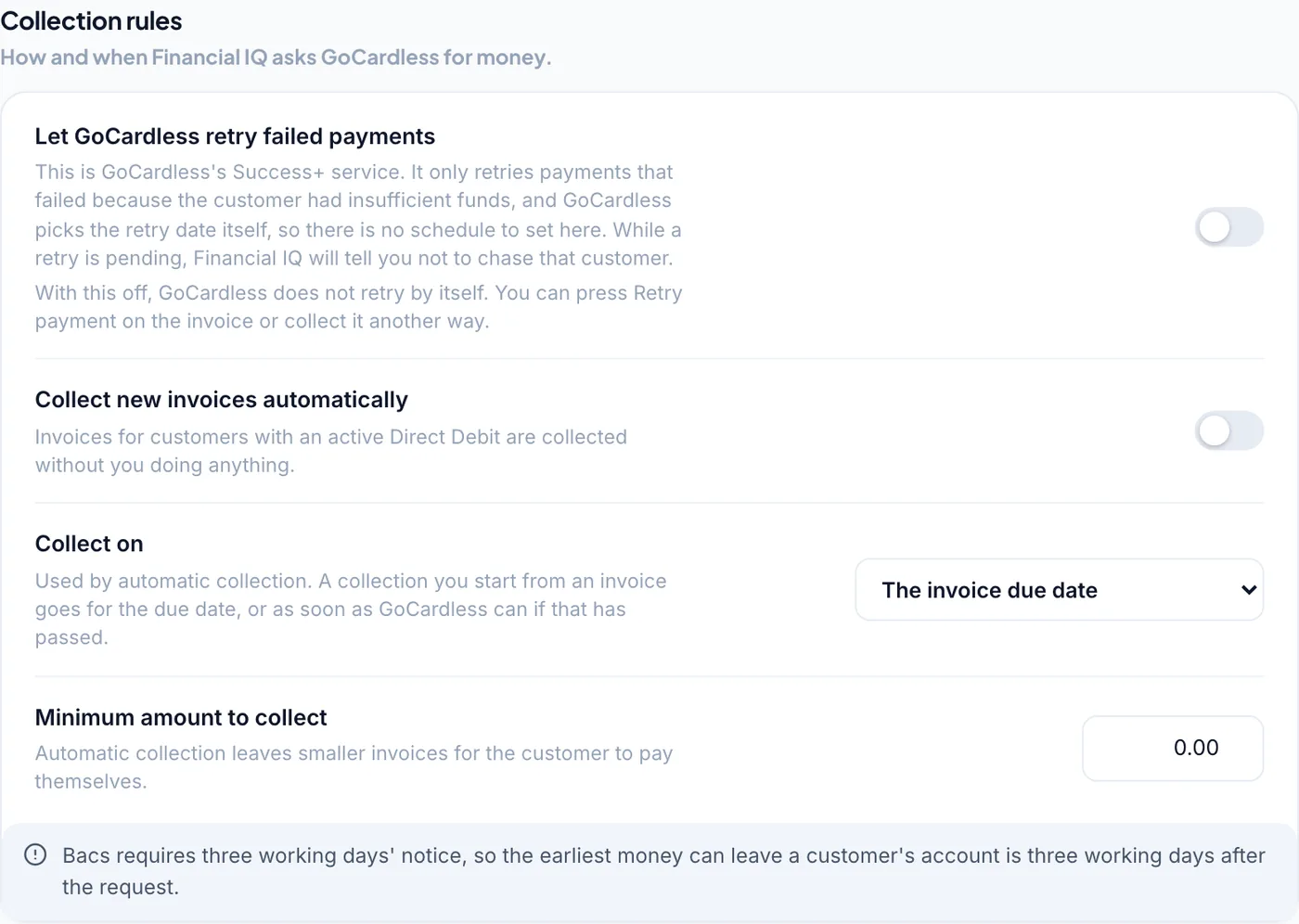
This guide starts every collection by hand from the invoice, which always uses the invoice due date. The Collect on and Minimum amount settings work with the switch called Collect new invoices automatically, which the steps below don't rely on.
Send your customer the mandate link
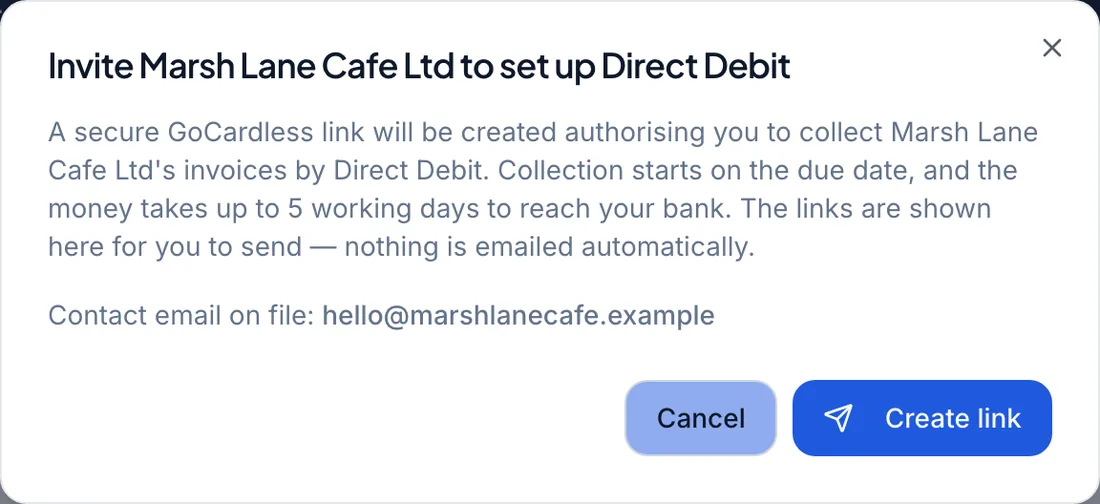
A mandate is the customer's permission to collect from their bank account, so nothing can be collected until they have signed one. Customers without one appear under Customers without a Direct Debit on the settings page. Press Invite beside the customer, or use the button on their customer page.
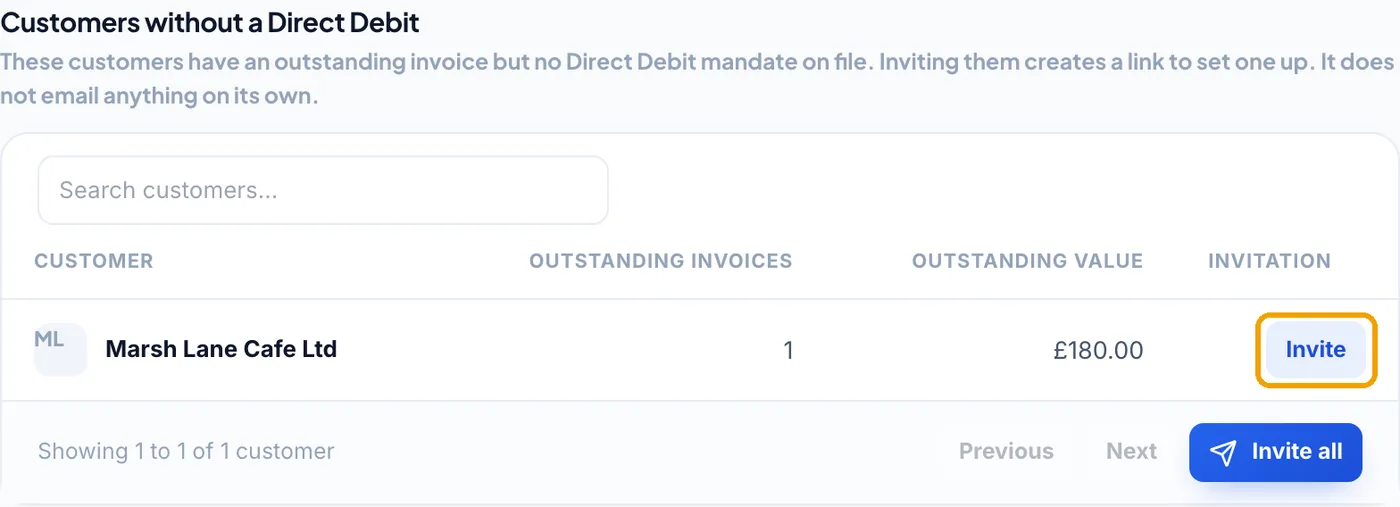
Press Create link and Financial IQ shows you a secure GoCardless link. Nothing is emailed automatically, so copy the link and send it to your customer yourself.
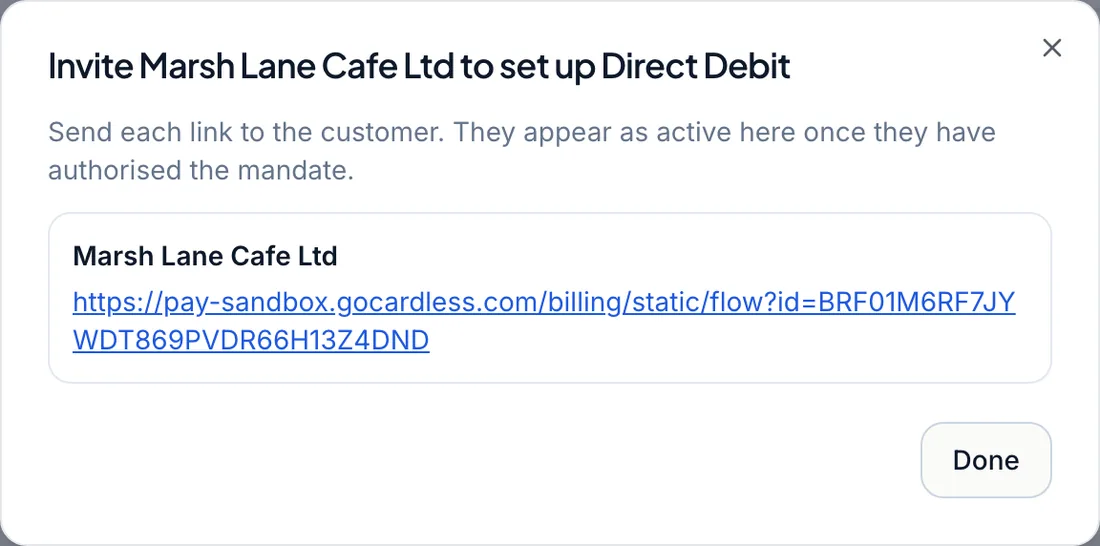
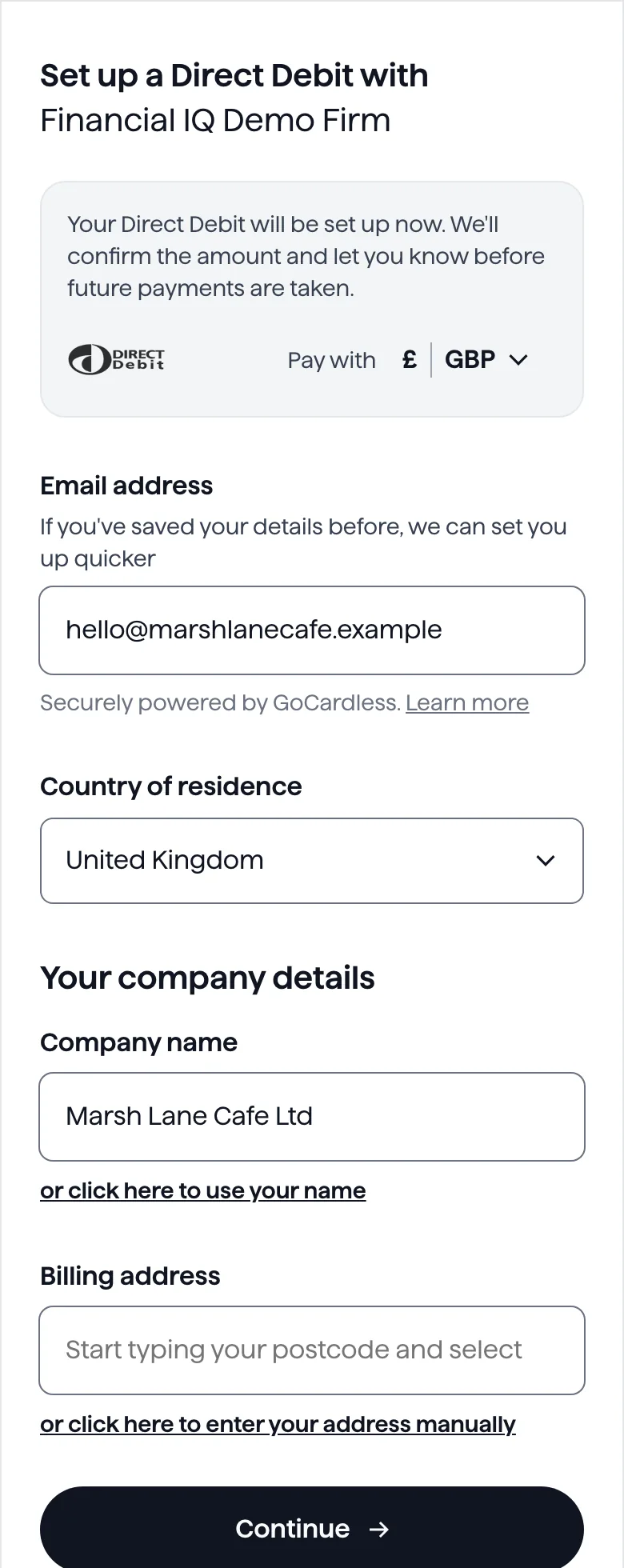
The link opens GoCardless's own page. The customer's name and email come through from Financial IQ, so they add their address and then their bank details. GoCardless's page shows the name you collect under.
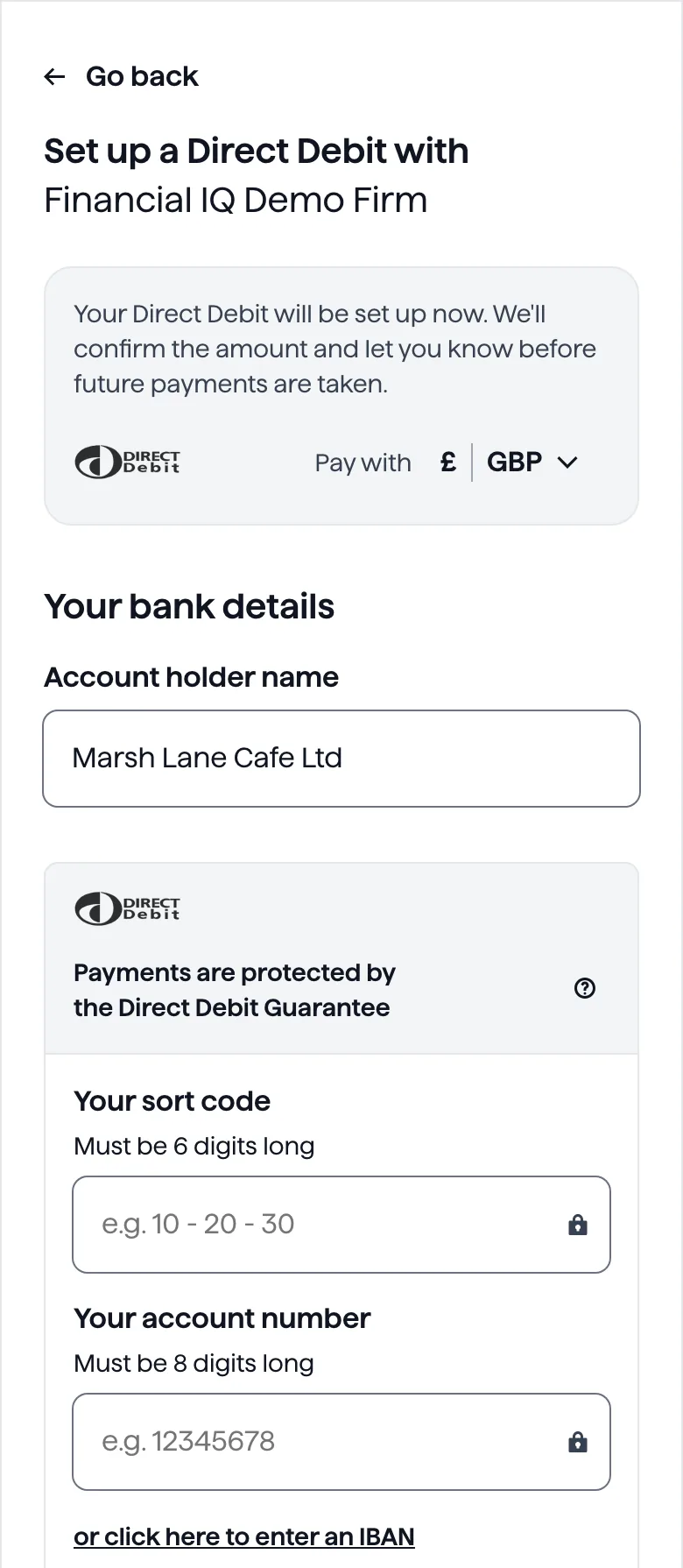
When they finish they land on a confirmation screen with your company's name on it. The customer's Direct Debit shows as pending in Financial IQ until GoCardless has set it up with the bank. It then shows as active and you can start collecting.
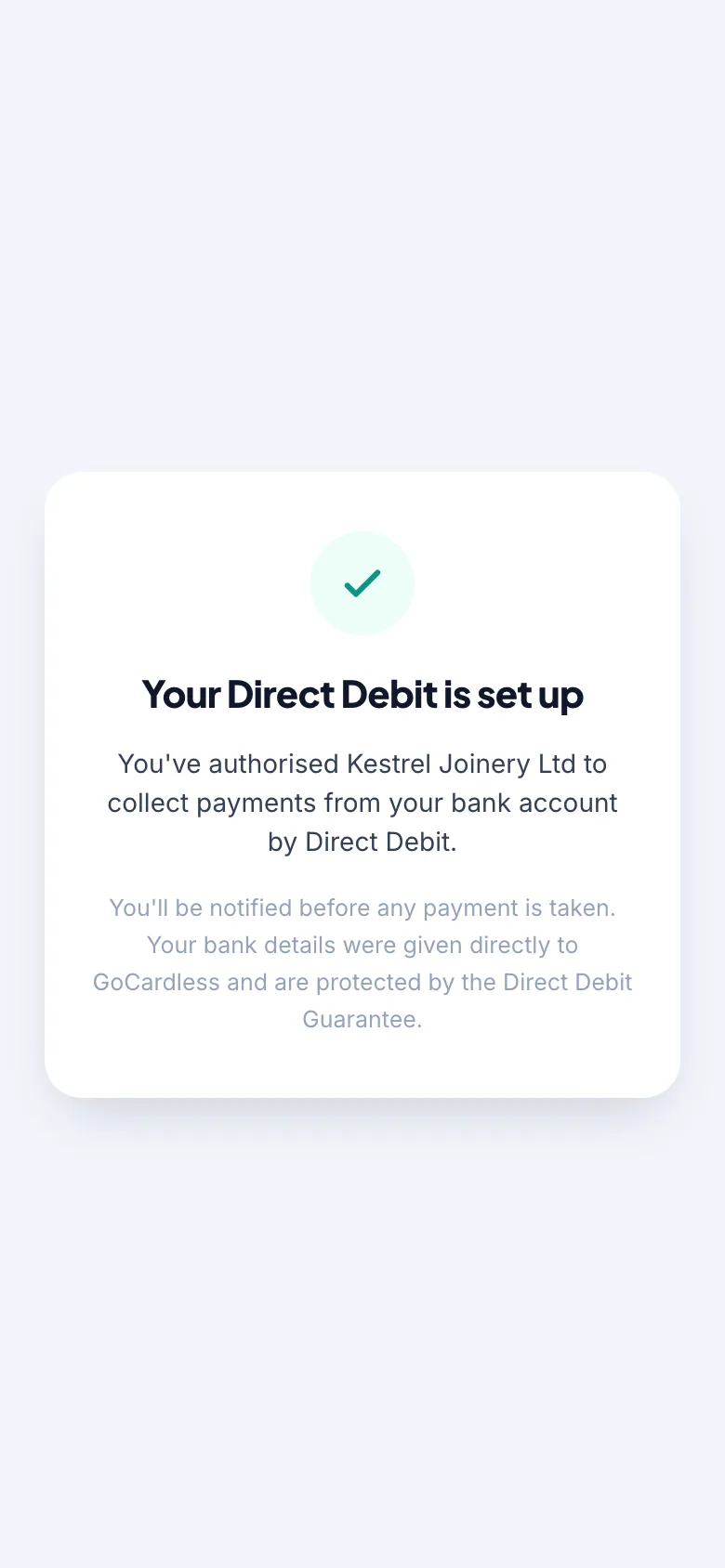
Take a payment against an invoice
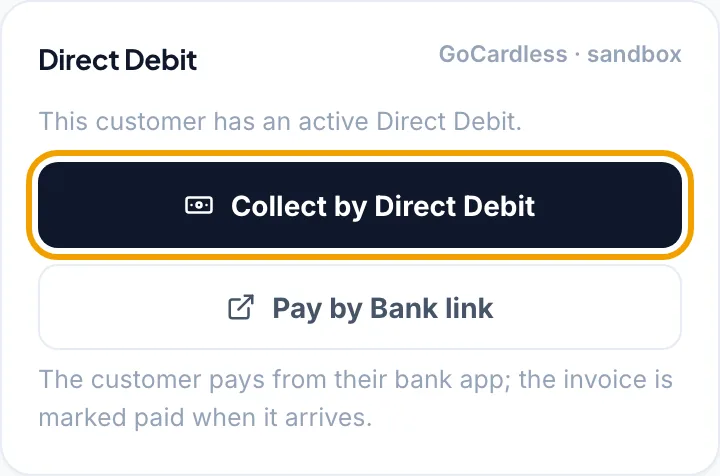
Open an issued, unpaid invoice for a customer with an active Direct Debit. The Direct Debit panel is on the right on a computer and further down the page on a phone. Press Collect by Direct Debit.
Check the amount and press Collect. To start a collection you need collection authority on your Financial IQ user and a current second sign-in step.
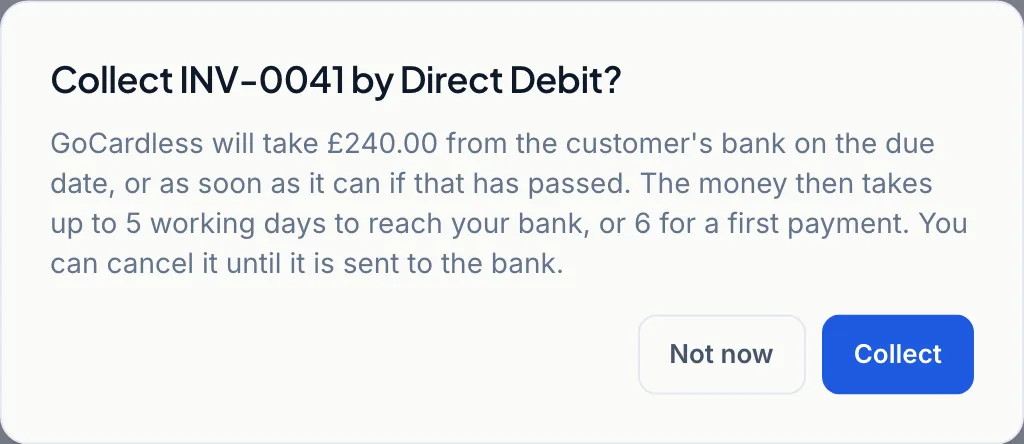
The due date is the day collection starts. Bacs needs three working days' notice, so an invoice that is already due goes as soon as GoCardless can take it. The money then takes up to 5 working days to reach your bank, or 6 for a first payment.
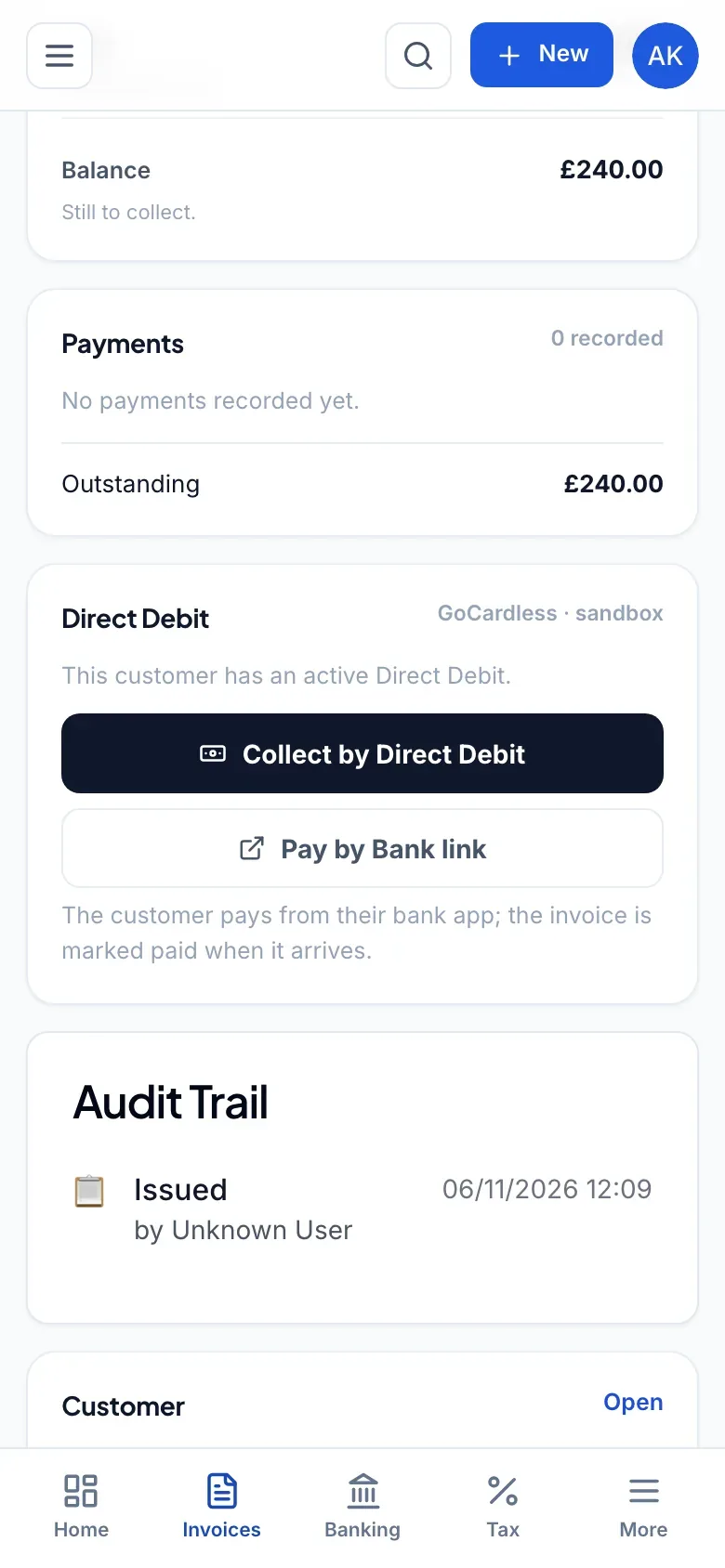
Follow the payment through to your bank
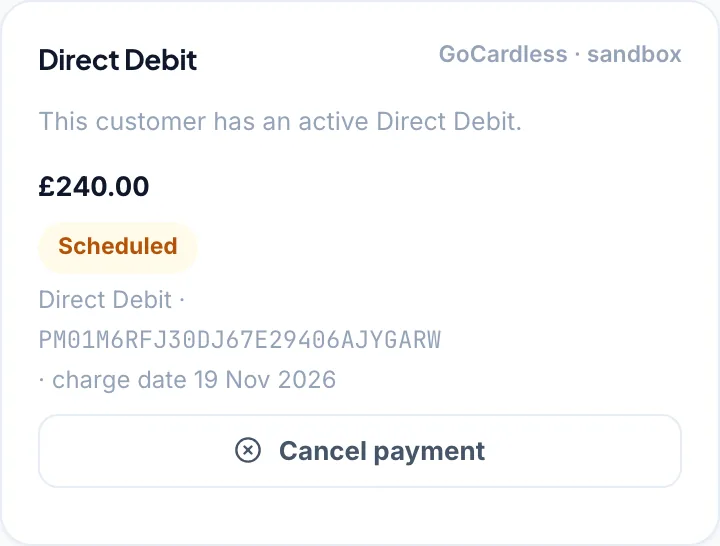
The panel on the invoice updates as GoCardless reports back. A payment moves from Scheduled to Sent to the bank, then Collected and finally Paid out to you. While it is Scheduled you can still press Cancel payment.
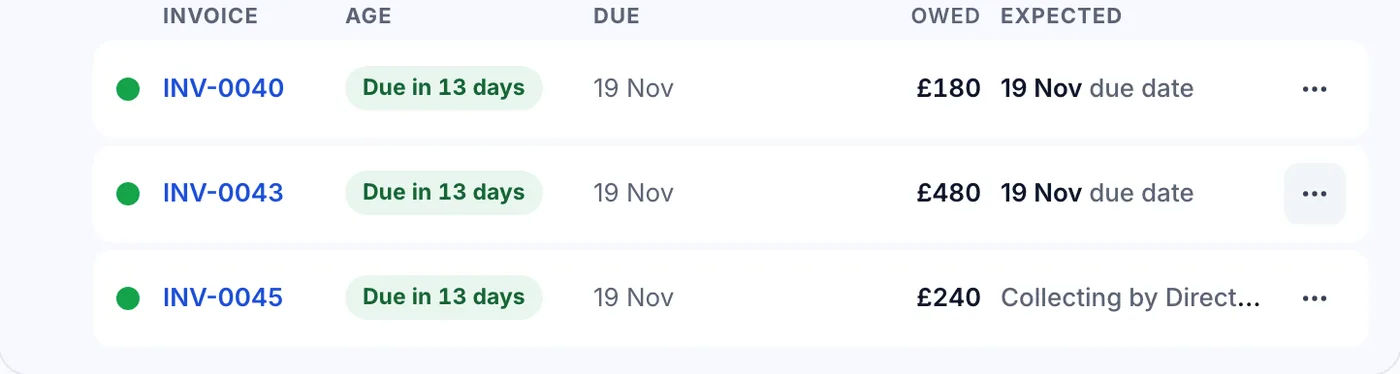
The invoice stays unpaid until the money is collected, but reminders stop in the meantime. Credit control shows it as Collecting by Direct Debit, so nobody chases a customer who is already paying.
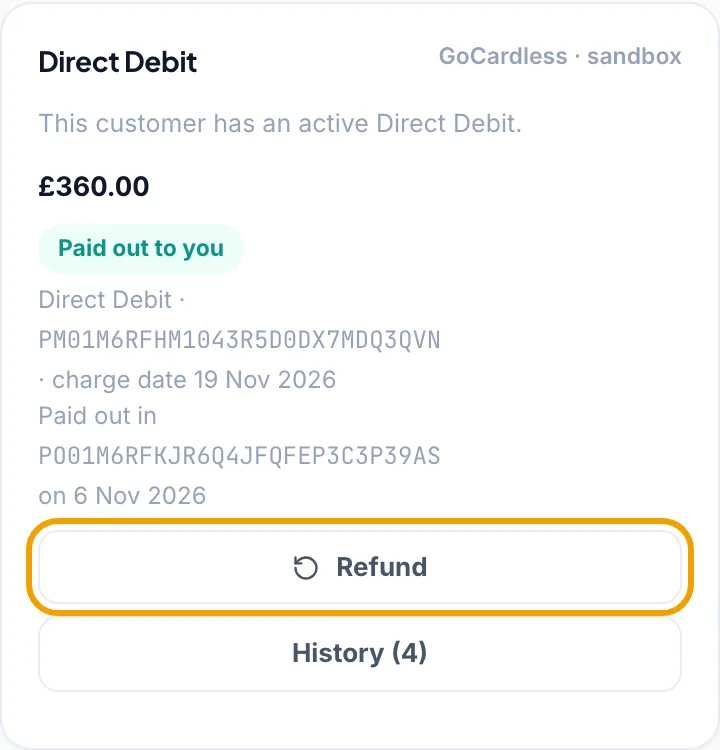
Once the payment is Collected, Financial IQ settles the invoice through your GoCardless Clearing account. You don't record the payment yourself. The panel then shows which GoCardless payout the money landed in.
Deal with a failed payment
If a payment fails, the panel shows Failed and the reason GoCardless gave. Nothing is posted to your books, the invoice stays unpaid and it goes back into your usual reminders.
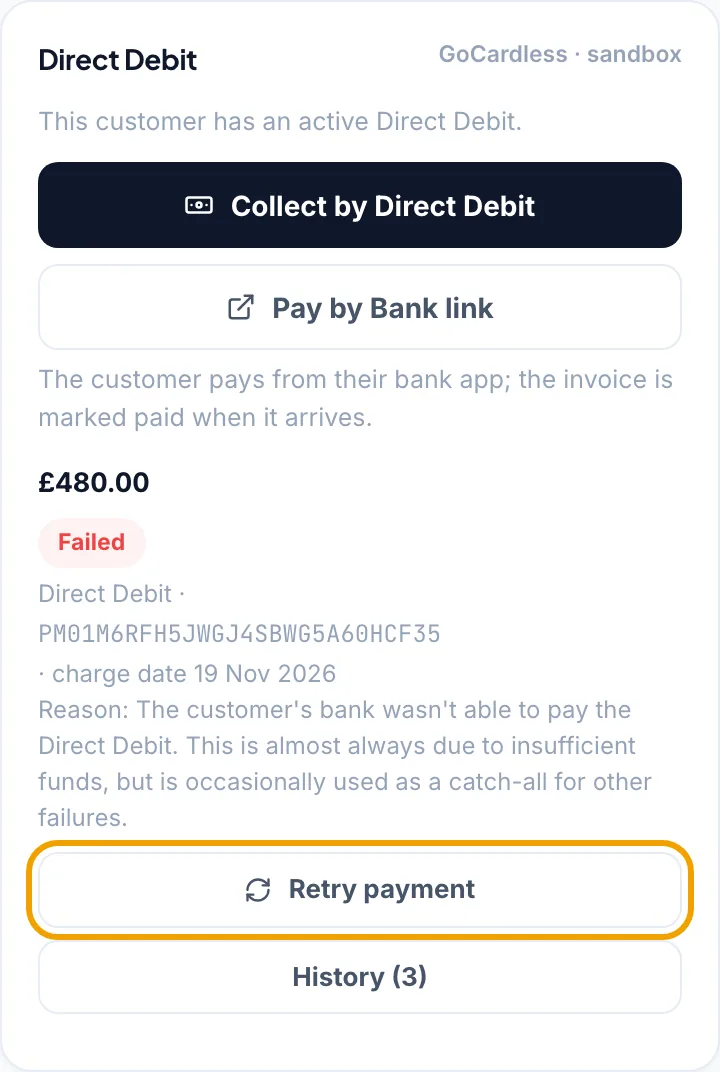
Press Retry payment to try again. GoCardless allows three retries of a payment. The button only appears when GoCardless would accept it and the mandate is still active.
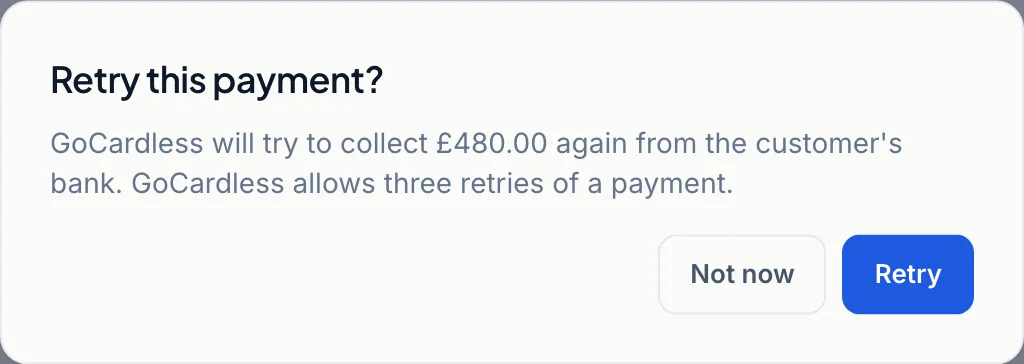
If GoCardless is already retrying a payment through Success+, the page tells you and hides the button. Don't chase that customer or collect another way, because taking it yourself as well would take the money twice.
A customer can also claim money back through their bank under the Direct Debit Guarantee after a payment has been collected. That shows as Charged back and the invoice is owed again from that day.
Refund a payment
Open the invoice and press Refund. You can refund all of the payment or part of it, once 7 days have passed since the charge date. Until then the panel shows the date you can refund from. Enter the amount and a reason for your records.
GoCardless keeps refunds switched off on an account until you ask them to enable it. Financial IQ tells you if yours is off. Ask them before you need to refund anyone.
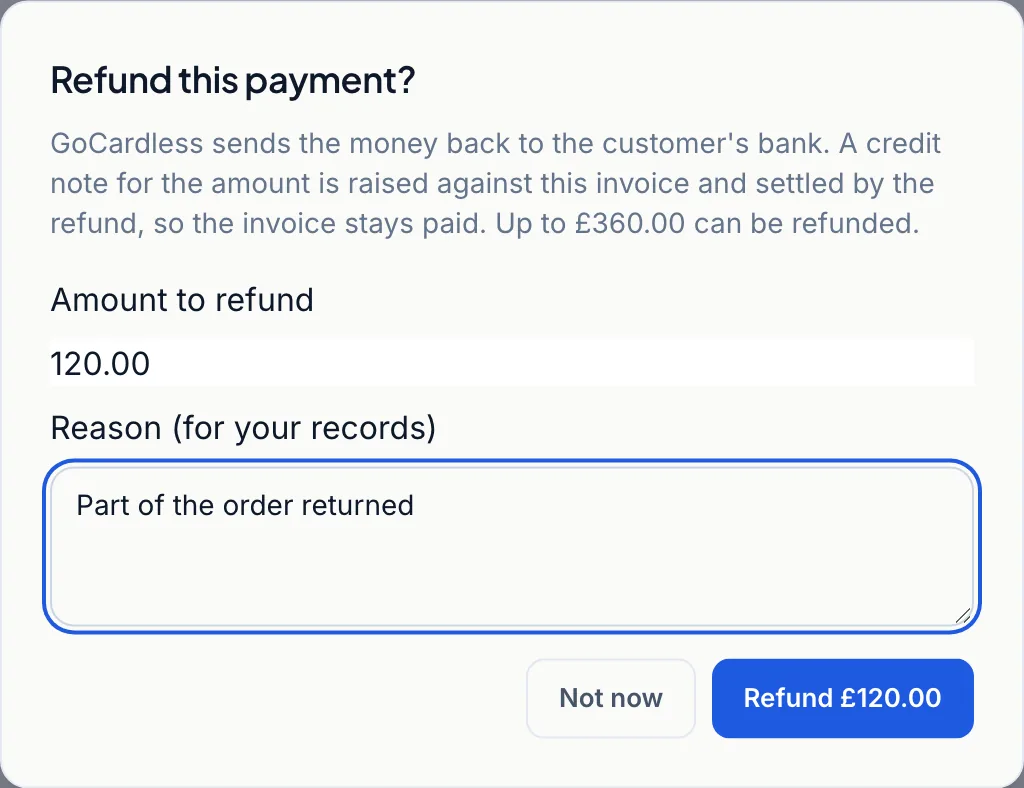
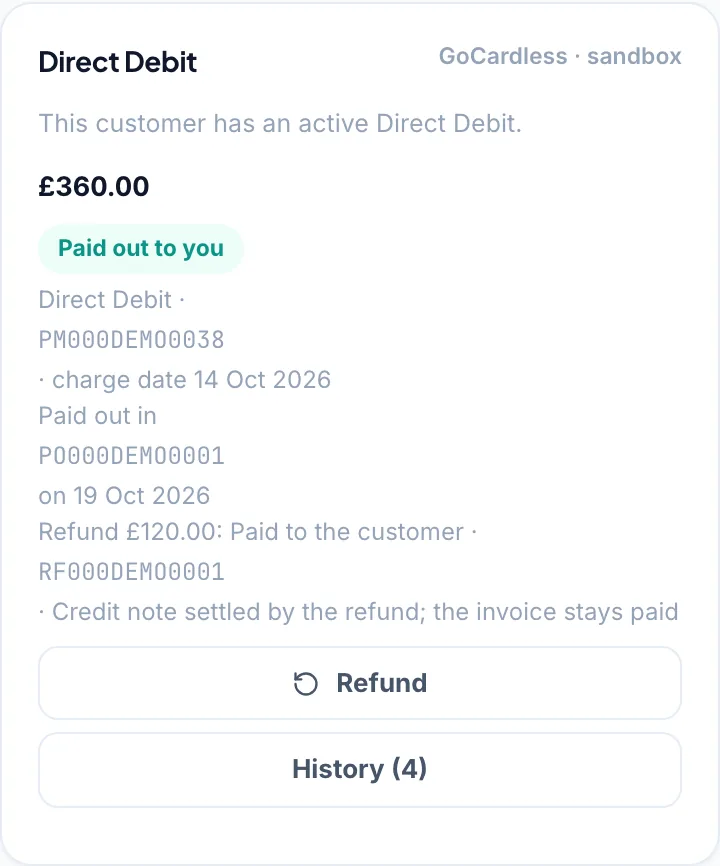
Financial IQ raises a credit note against the invoice for the amount refunded and the refund settles it, so the invoice stays paid and never goes back to owing. If the refund fails after that, the credit note stays open and the panel says so.
See the fees in your books
GoCardless takes its fee out of each payout, so what reaches your bank is the amount collected less the fee and VAT on the fee. Financial IQ adds no fee of its own to a collection. The Payouts section of the settings page shows what reached the bank, the fees and every line behind them.
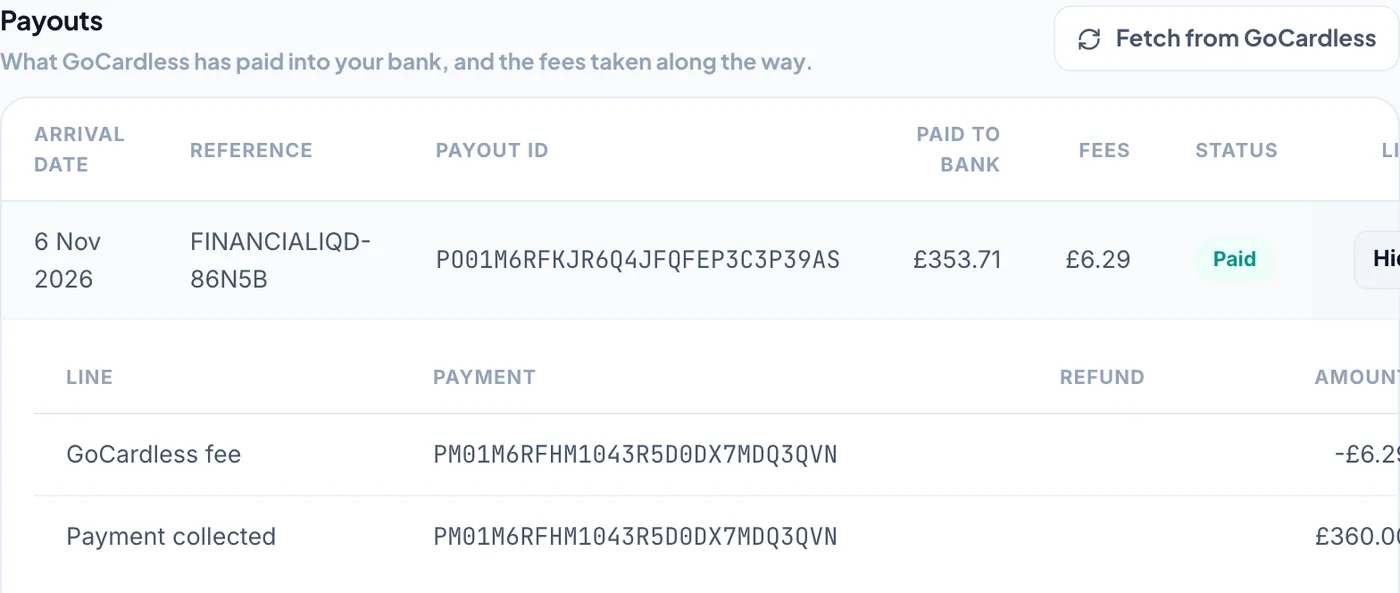
The fee depends on your GoCardless plan. Standard charges 1% plus 20p capped at £4 and Pro, which the test account in the picture is on, charges 1.4% plus 20p capped at £5.60. Each plan adds 0.3% on the part over £2,000 and their prices exclude VAT.
| Standard | Pro, as pictured | |
|---|---|---|
| Collected from your customer | £360.00 | £360.00 |
| GoCardless fee | −£3.80 | −£5.24 |
| VAT on the fee | −£0.76 | −£1.05 |
| Reaches your bank | £355.44 | £353.71 |
Scroll sideways to see every column.
When the payout is paid, Financial IQ takes the fee off GoCardless Clearing, once for each payout. If your business is VAT registered, the fee goes to your GoCardless fees account and the VAT GoCardless states goes on your VAT return. If you aren't registered or you use the Flat Rate Scheme, the whole amount goes to GoCardless fees.
GoCardless pays Financial IQ a share of the fees it charges. We tell you that up front so you can weigh it when you decide whether to use them.
Common questions
No. The due date is when collection starts. Bacs then takes up to 5 working days to reach your bank, or 6 for a first payment.
No. Press Link existing customers and mandates after you connect and Financial IQ matches what is already at GoCardless to your customers. Anything it can't match is listed for you to link by hand.
On the Standard plan it is 1% plus 20p for each payment, capped at £4, with 0.3% more on the part over £2,000. GoCardless says most users pay no setup or monthly cost. Advanced is 1.25% plus 20p capped at £5 and Pro is 1.4% plus 20p capped at £5.60. Prices exclude VAT and were checked at gocardless.com/pricing on 6 November 2026.
The Direct Debit Guarantee. If there is an error with a payment they are entitled to a full and immediate refund from their bank. They can also cancel a Direct Debit at any time by contacting their bank.
What this doesn’t cover
- The Pay by Bank link on the invoice panel, which takes a single payment from the customer's bank app
- Disconnecting GoCardless, or unlinking and cancelling a mandate
- GoCardless fees posted before November 2026, which stay as one figure
Next step: see what else Financial IQ does for your business